Overview
This guide explains how to integrate your FairConsent account with Frontify to automatically sync collected consents into your organization’s DAM instance.
Prerequisites:
Before you begin, make sure:
- You have an active FairConsent subscription.
- You have admin access to your Frontify instance.
Step 1 – Go to Integrations
- Log in to your FairConsent Platform.
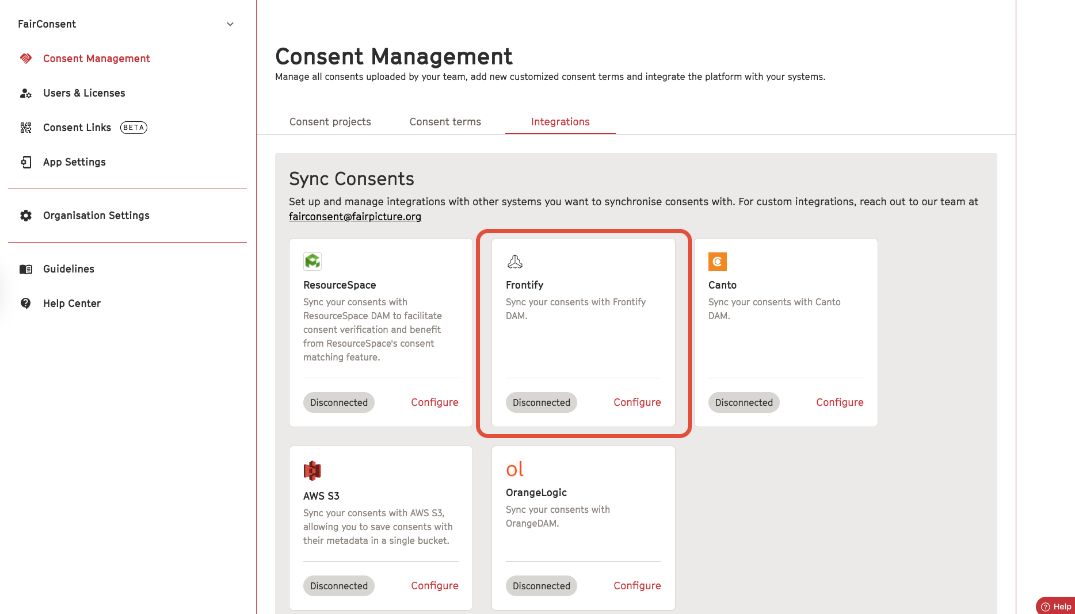
- From the left menu, navigate to Consent Management → Integrations.
- In the integrations list, find Frontify and click Configure.
Step 2 – Enter your Frontify credentials
In the Frontify configuration window, fill in the required fields:
Base URL | The URL of your Frontify instance (e.g., https://your.company.frontify.com/). |
Access Token | A token generated in your Frontify admin panel, used to authenticate API requests. |
Library ID | The library in Frontify is where FairConsent will upload the metadata and files. |
Folder ID | Optionally, you can enter specific folder in Frontify where FairConsent will upload the files. |
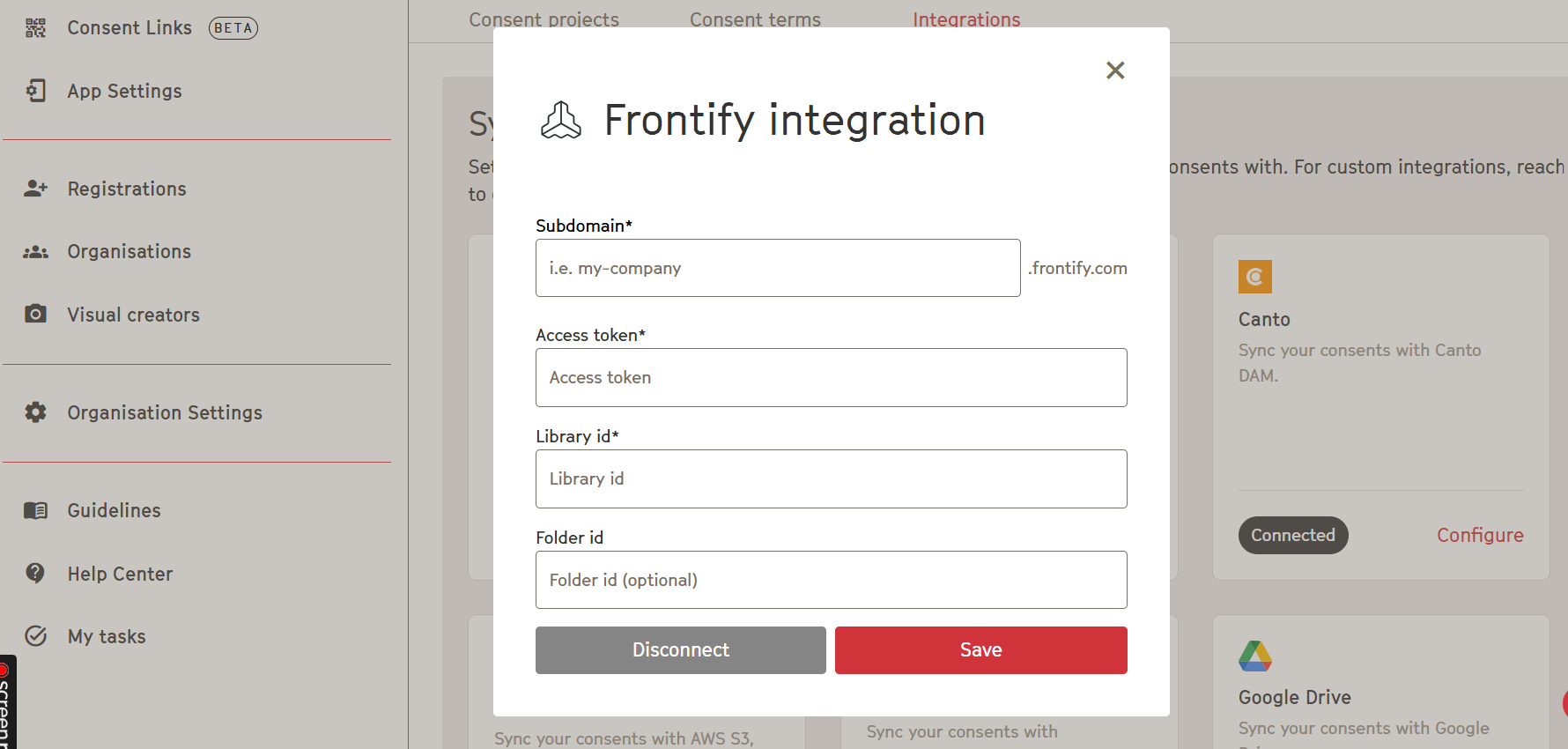
To find this field in Frontify, follow the steps below:
1. Subdomain: Find and copy the subdomain from the page link when you log in.
2. Access token: Enter this (oauth-access-token) at the end of the link(e.g. https://your.company.frontify.com/oauth-access-token.
- This will open the new personal developer token page, and you can click create at the top right. Figure 1
- Copy the token and paste it in the access token field.
3. Library ID: Open the targeted library and copy the ID at the end of the link and paste it in the library ID field.
4. Folder ID: Open a folder and copy its id then paste it in the Folder ID field (optionally)
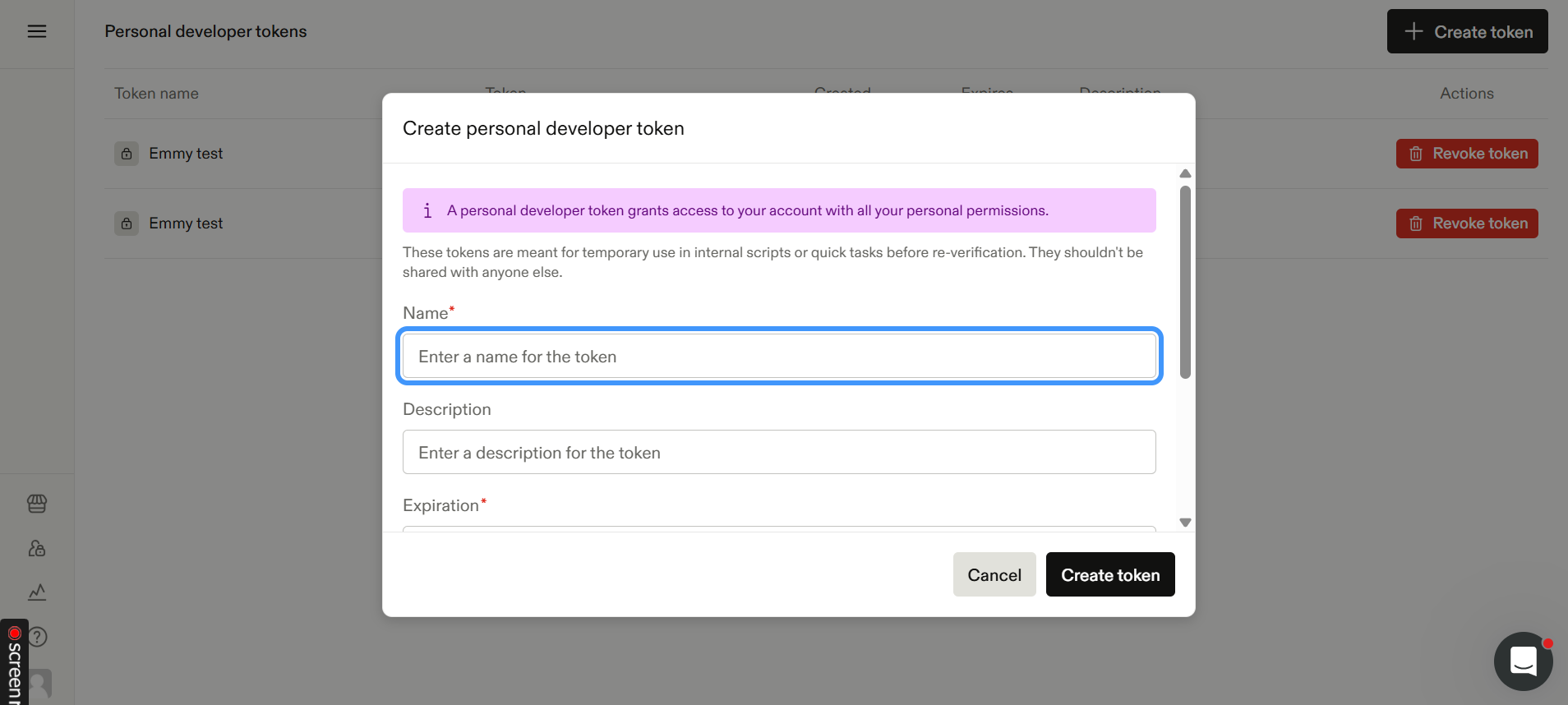 Figure 1
After entering all fields, click Save.
Troubleshooting
Incorrect Base URL: Make sure your instance URL does not include /api or any trailing path.
Authentication errors: Verify that your Access Token is valid and correct.
Consents not showing in the library: Check that the Library ID exists and the authenticated token is correct.
Video Tutorials
https://screenrec.com/share/pQlP4TsjFN
Need more help?
Contact: support@fairpicture.org
Was this article helpful?
That’s Great!
Thank you for your feedback
Sorry! We couldn't be helpful
Thank you for your feedback
Feedback sent
We appreciate your effort and will try to fix the article