Overview
This guide explains how to integrate your FairConsent account with ResourceSpace DAM to automatically sync collected consents to your organization’s ResourceSpace instance.
Before you begin
Make sure:
- You have an active FairConsent subscription.
- You have admin access to your ResourceSpace instance.
- You already created an API user in ResourceSpace for the integration.
- Every FairConsent user who will sync consents also exists in ResourceSpace with the same email address.
Step 1 – Go to Integrations
- Log in to your FairConsent Platform.
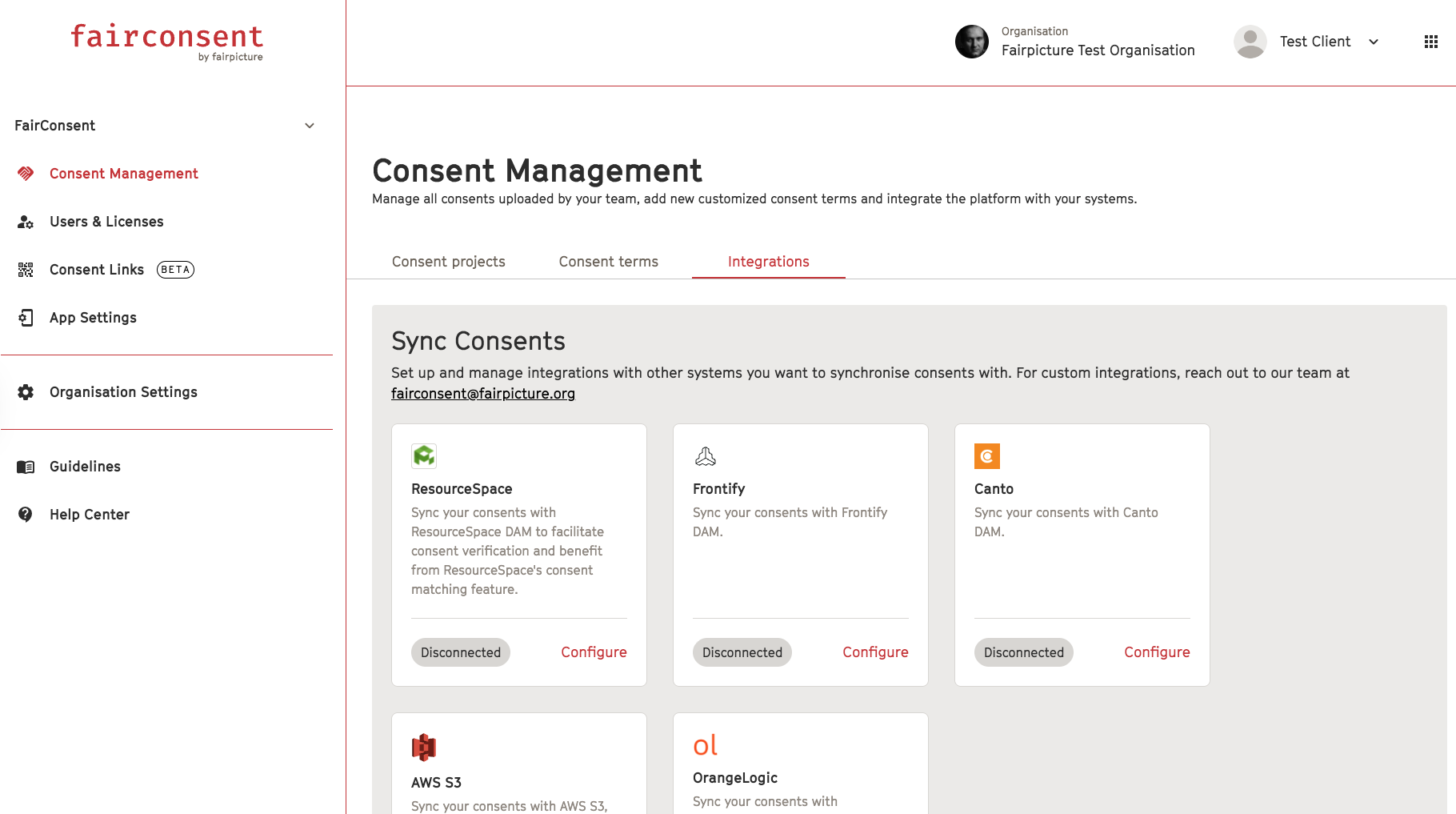
- From the left menu, navigate to Consent Management → Integrations.
- In the integrations list, find ResourceSpace and click Configure.
Step 2 – Enter your ResourceSpace credentials
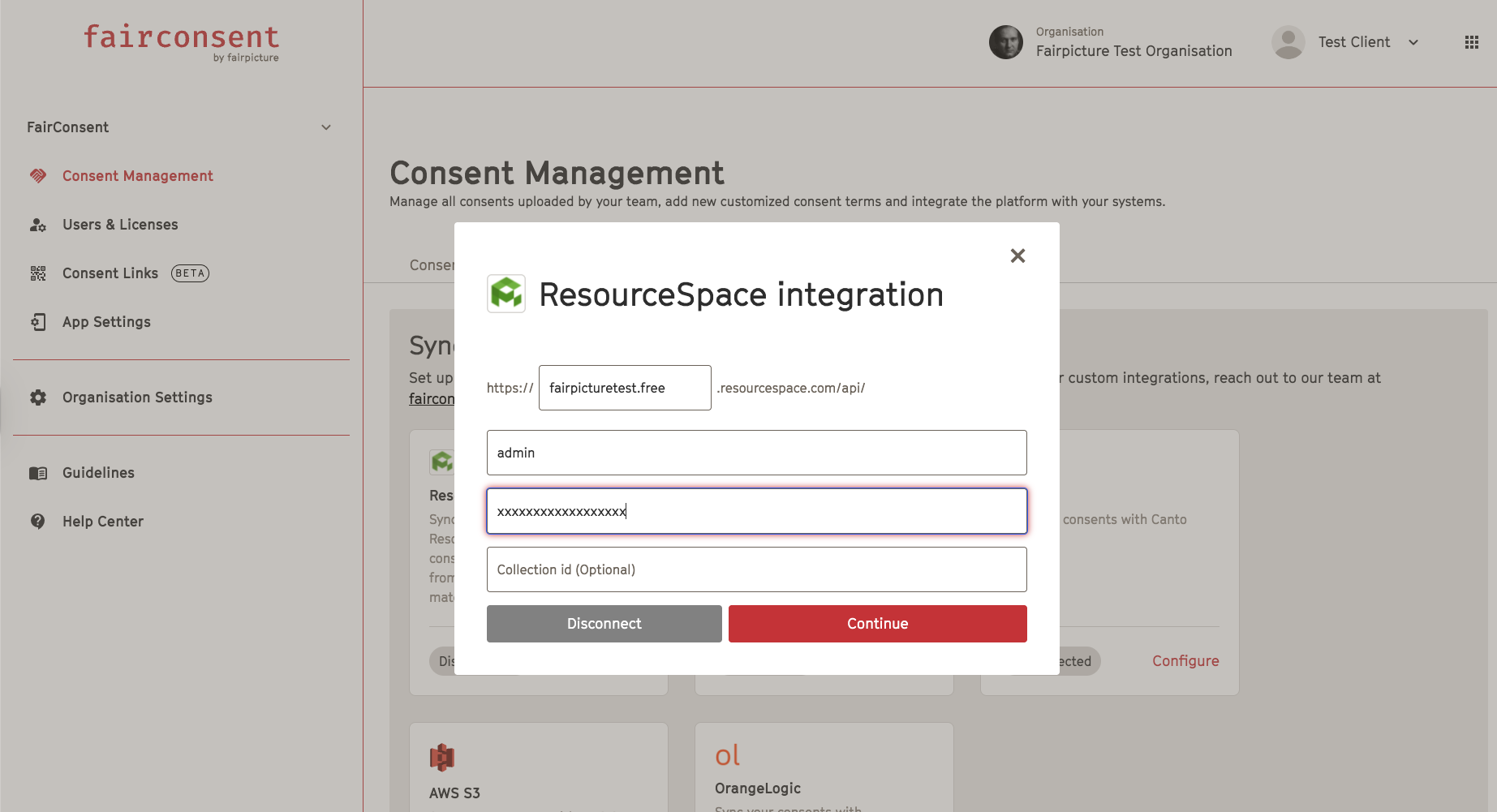
In the ResourceSpace configuration window, fill in the required fields:
- Instance Path
- API Username
- API Key
- Collection ID (Optional)
Click Continue.
Step 3 – Choose your sync mode
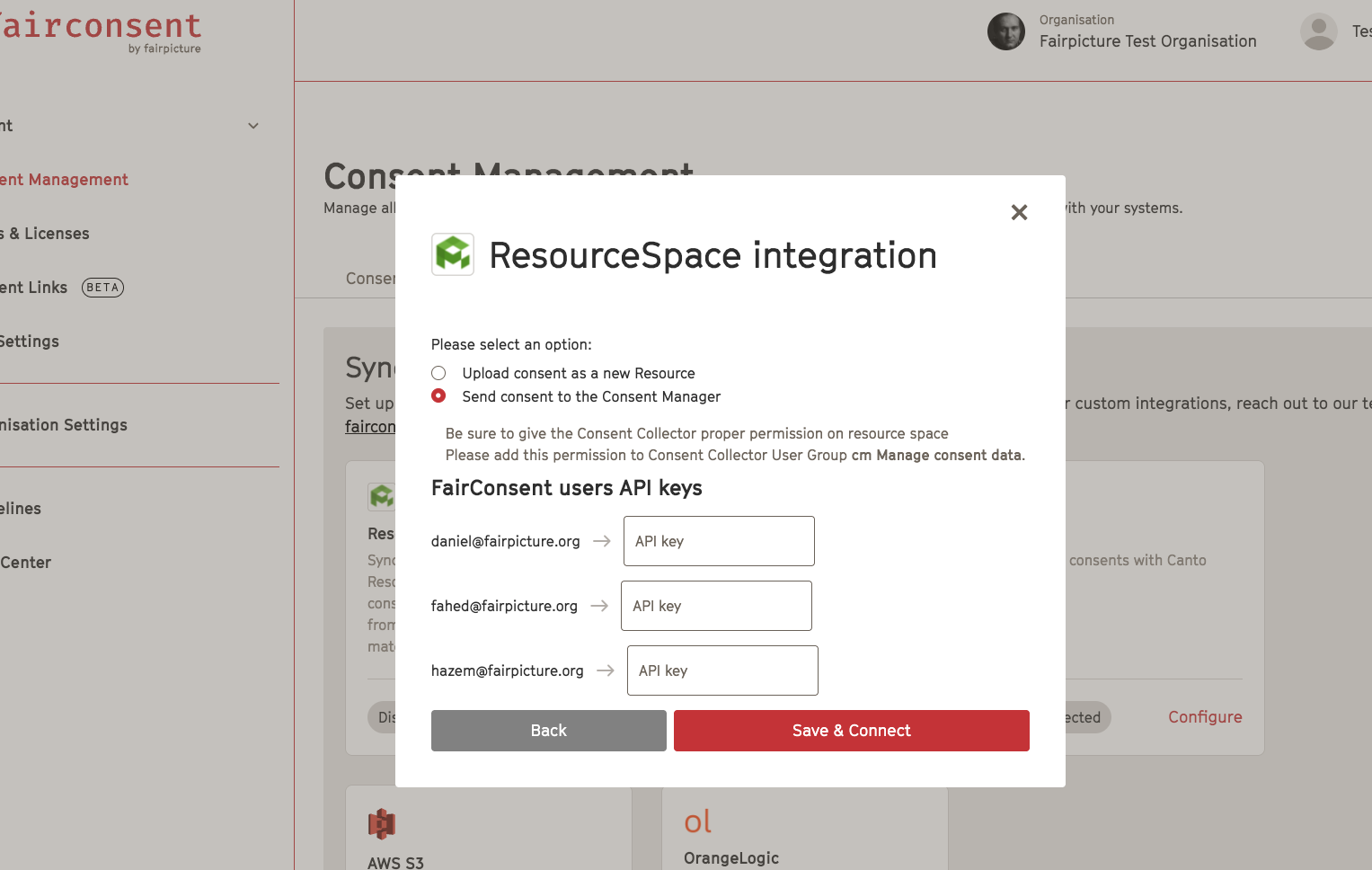
You can choose how FairConsent syncs consents to ResourceSpace:
- Upload consent as a new Resource
- Send consent to the Consent Manager (recommended)
Step 4 – Add API keys for FairConsent users
You will see a list of all FairConsent users.
For each user:
- Enter their ResourceSpace API key
- Ensure the email matches between FairConsent and ResourceSpace
Click Save & Connect.
Step 5 – Required permissions in ResourceSpace
Your ResourceSpace admin must grant the user/group the permission:
- cm Manage consent data
This is mandatory for the integration to work correctly.
Troubleshooting
Email mismatch
Make sure the user’s email in FairConsent is exactly the same as in ResourceSpace.
Permission issue
Ensure the user/group has cm Manage consent data.
Consents not syncing
- Check API keys
- Verify instance path
- Confirm correct sync method
- Ensure emails match
Need help?
Contact us at: fairconsent@fairpicture.org
Video Tutorial
https://www.loom.com/share/c2588c3acece4c13b8216dc91ccbdb5f
Was this article helpful?
That’s Great!
Thank you for your feedback
Sorry! We couldn't be helpful
Thank you for your feedback
Feedback sent
We appreciate your effort and will try to fix the article